Using rendering effects
Kanzi Studio comes with several preset effect composers you can use in your project to achieve a specific rendering effect.
These effect composers are available in Kanzi Studio:
- Bloom Composer creates a bloom effect making bright objects to appear glowing. The composer creates a bloom effect on object edges that interact with light sources.
- Color Adjust Composer modifies the colors of their targets. You can use it to adjust color properties: brightness, contrast, saturation, gamma saturation, hue, and lightness.
Because this composer is computationally intensive use it mainly for prototyping. For production use you can achieve the same result by modifying the content.
- Depth-of-Field Composer creates a depth-of-field effect by blurring objects that are out of focus. You can use it to render objects at a certain distance range sharply while blurring objects outside the focus range, artificially simulating how cameras and even the human eye works.
This composer is computationally intensive. You can override this effect with camera properties.
- Partial Rendering Composer enables multi-pass rendering of stencil bounding volumes. This reduces the fill-rate if most of the scene is static, since only moving objects need to be re-rendered. You can use this composer to optimize performance of applications where only part of the displayed scene is in motion. See Using partial rendering layers.
- Render to Cube-map Composer allows for rendering dynamic cubemap textures from the viewpoint of a given object. You can use it for creating cubemaps from a 3D scene, for example, to generate dynamic reflections. See Using render to cubemap composer.
- Shadow Map Composer allows for automated shadow mapping. The shadow mapping is calculated based on a shadow caster camera. The shadow caster camera and the objects that cast or receive shadows are determined by their attached properties. Use this composer to create shadows in a scene. See Using the shadow map composer and Creating dynamic shadows.
- Stereoscopic Composer creates a stereoscopic effect for displays or accessories that can produce the stereoscopic effect. You can use it to adjust eye distance, focus distance, and to reverse eyes. You can override this effect with camera properties.
Creating a rendering effect
To create a rendering effect:
- In the Library right-click Composers select Create, and select the effect composer you want to use.
For example, select Bloom Composer.
- Move the effect composer inside the composer you use for rendering the scene where you want to apply the rendering effect.
For example, if the composer you use for rendering the scene is in Composing > Composers > Composer, place the effect composer inside the Composer.
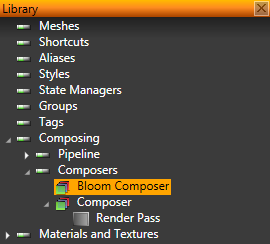
- Move the render pass inside the effect composer.
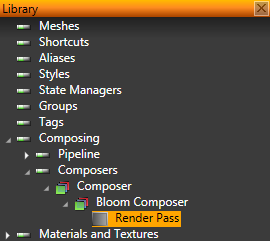
- Select the effect composer and in the Properties adjust the properties of the effect composer to achieve the desired effect.
Applying more than one rendering effect
You can combine rendering effects to achieve an effect you cannot achieve with a single rendering effect.
To apply more than one rendering effect:
- In the Library > Composers create the rendering effects you need. See Creating a rendering effect.
-
Nest the effect composers in the order you want to apply the effects inside the composer you use for rendering the scene where you want to apply the rendering effects.
- Move the render pass inside the last effect composer.
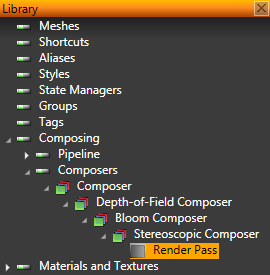
Applying rendering effect only to certain objects
Use filter when you want to apply a rendering effect only to certain objects. This example shows how to use a tag filter, but you can use any filter to achieve the same result. See Filters.
To apply the effect composers only to certain objects:
- Create a tag and assign it to the objects you want to select for rendering. See Using tags.
- Create a tag filter and set the tags you want the filter to include and exclude. See Using tag filters.
- In the Library > Composing > Composers select the render pass in the effect composer.
- In the Properties set the Object Source property to the tag filter you created in the previous step.
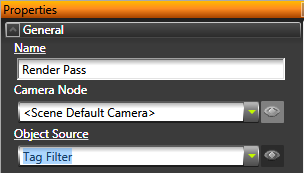
Kanzi Studio renders the objects collected by the filter.
See also
Composers
Rendering
Filters
Tags
Materials, textures, and rendering
Creating reflections
Effects example
Open topic with navigation